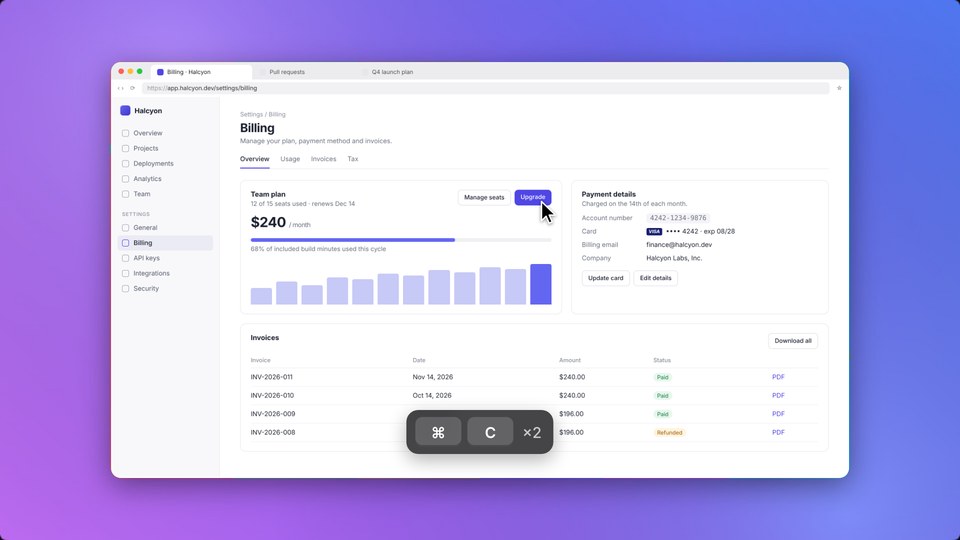
“Then press Command-Shift-P” is easy to miss when you're watching someone else's screen. On-screen keys fix it: viewers see the shortcut appear as you press it, and repeated presses collapse into one badge with a count, like ⌘ C ×2.
Options
- Style: dark or light keycaps, to match your recording.
- Position: bottom or top of the frame.
- Shortcuts only, not everything you type. Keys pressed with Command or Control show up; ordinary typing never appears on screen.
- Key sounds: optional soft or typewriter clicks, with your voice kept clear over them.
Turn it on
- Allow ScreenTell under Accessibility in System Settings, Privacy & Security. macOS asks once; it's what lets an app see global shortcuts.
- Record. ScreenTell logs your shortcuts on their own track.
- In the editor, open Style, then Keys, and pick a style and position. Edit or remove any badge on the timeline.
For other tools and tips, read how to show keystrokes in a screen recording on Mac.
Questions
Will it show my passwords?
No. Plain typing is never shown as keycaps, only shortcuts that use Command or Control. Still, avoid typing real passwords on camera.
Can I add keys after recording?
Keys are captured while you record. You can hide, restyle or delete them afterwards.