Short answer: macOS has no built-in keystroke display. Either run a free overlay app such as KeyCastr while you record, or use a recorder with keycaps built in, such as ScreenTell, which lets you restyle or remove them after recording.
Option 1: a keystroke overlay app
KeyCastr is a free, open-source app that draws the keys you press on top of your screen. Any screen recorder then captures them.
- Install KeyCastr and allow it under Accessibility in System Settings, Privacy & Security.
- Choose whether it shows every key or only shortcuts, and where on screen.
- Start your recording.
The catch: the keys are burned into the video. If one covers something important, or you typed something you'd rather hide, you have to re-record.
Option 2: a recorder with built-in keycaps
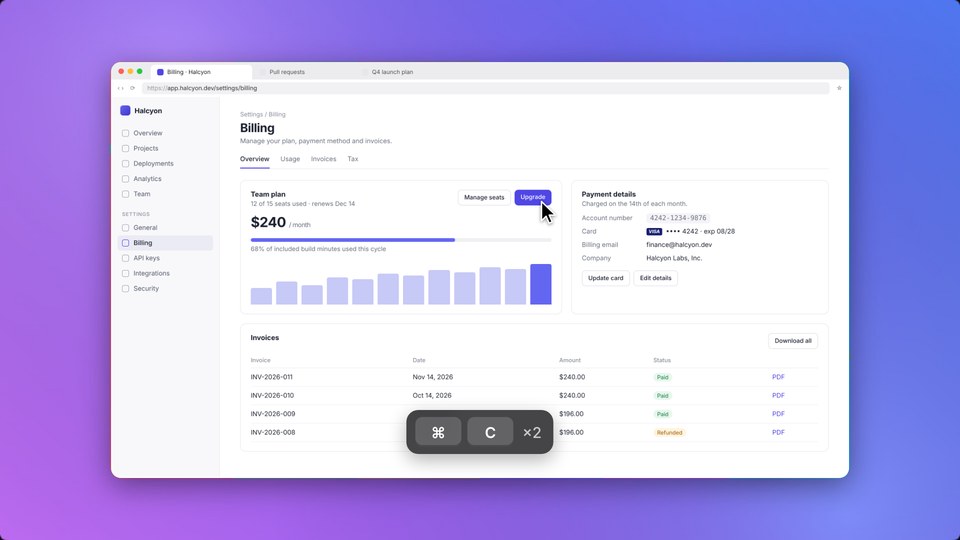
ScreenTell logs your shortcuts on their own track while you record, then draws them as keycaps when you export. Because they're a separate layer, you can change them later.
- Allow ScreenTell under Accessibility when macOS asks.
- Record as usual. Shortcuts that use Command or Control are captured; plain typing never appears.
- In the editor, open Style, then Keys. Choose dark or light keycaps, and top or bottom.
- Optional: turn on key sounds for a soft click on each shortcut.
Option 3: say it and caption it
For a single shortcut in a long video, saying “press Command-K” and adding a text caption in your editor works too. It's slower to produce but reads well when the video is watched muted.
Make keystrokes readable
- Use the symbols people see on their keyboards: ⌘ Command, ⌥ Option, ⇧ Shift, ⌃ Control.
- Keep keycaps on screen for at least a second.
- Put them where nothing else lives. Bottom is usual; use top for vertical video, where captions sit at the bottom.
- Zoom in on the result of the shortcut so viewers see what it did.
Questions
Does macOS have a built-in keystroke display?
No. You need a third-party overlay or a recorder that captures keys.
Is it safe to show keystrokes while typing a password?
Overlay apps set to show all keys will display it. ScreenTell only shows shortcuts that use Command or Control, so ordinary typing, including passwords, never appears. Still, avoid typing real passwords on camera.