Real product demos show real data: customer names, emails, invoice numbers, tokens in a settings page. A static blur box works until the page scrolls, and then the number you meant to hide slides out from under it. Keyframing the box by hand in a video editor takes ages and is easy to get wrong.
ScreenTell's masks track. You draw the box once on the frame where the text appears, press Track, and ScreenTell follows that patch of the screen through scrolling and zooms, writing the keyframes for you.
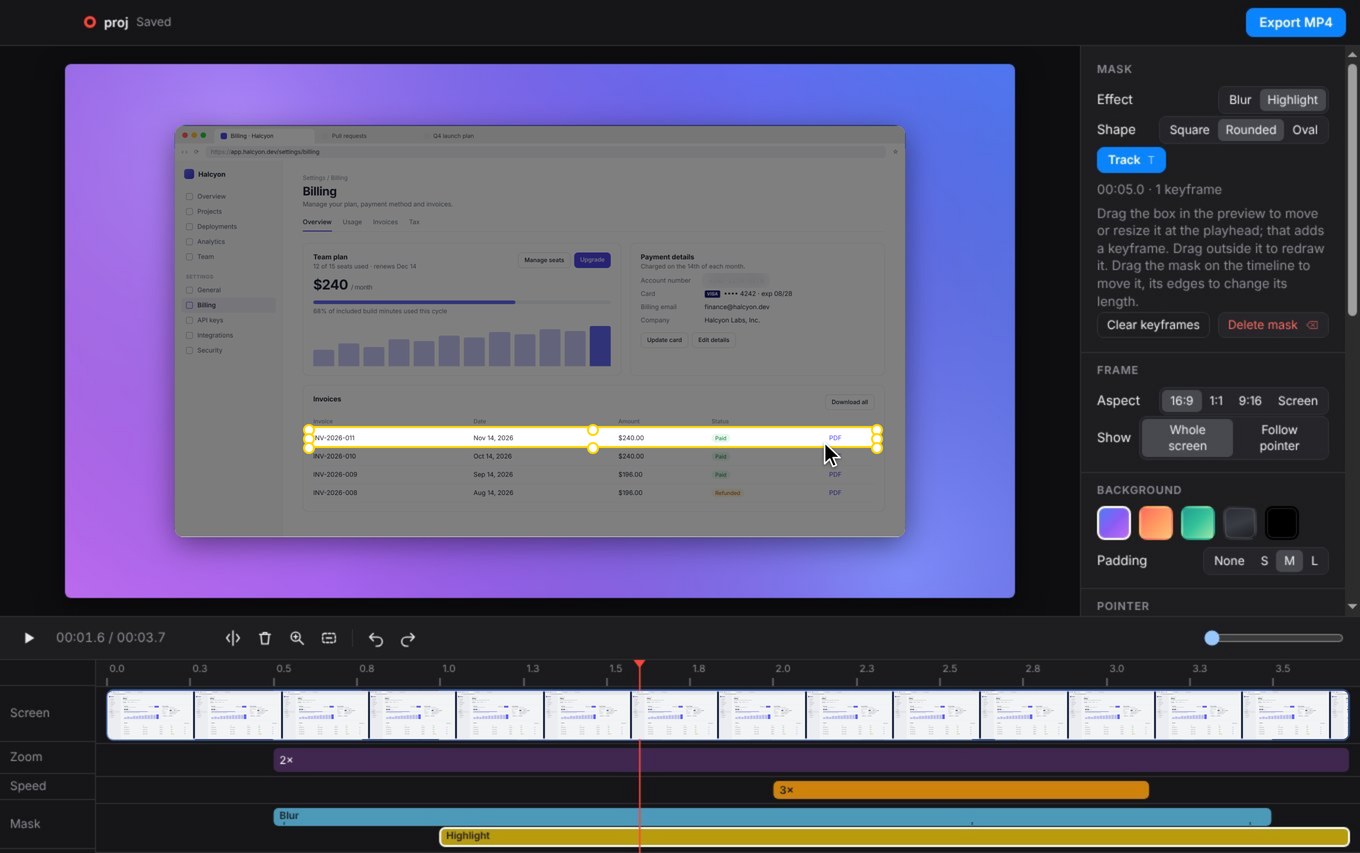
How to blur part of a screen recording
- Move the playhead to where the sensitive text first appears.
- Press + on the Mask row and drag a box over the text. Choose Blur, and a square, rounded or oval shape.
- Press Track. ScreenTell follows it forward. Scrub through to check, and drag the box at any frame to correct it; that adds a keyframe.
- Drag the mask's ends on the timeline so it covers exactly the time the text is visible.
Highlight instead of hide
The same tool does the opposite: choose Highlight to dim everything except the box, so viewers look at the one field that matters.
Safe at any zoom
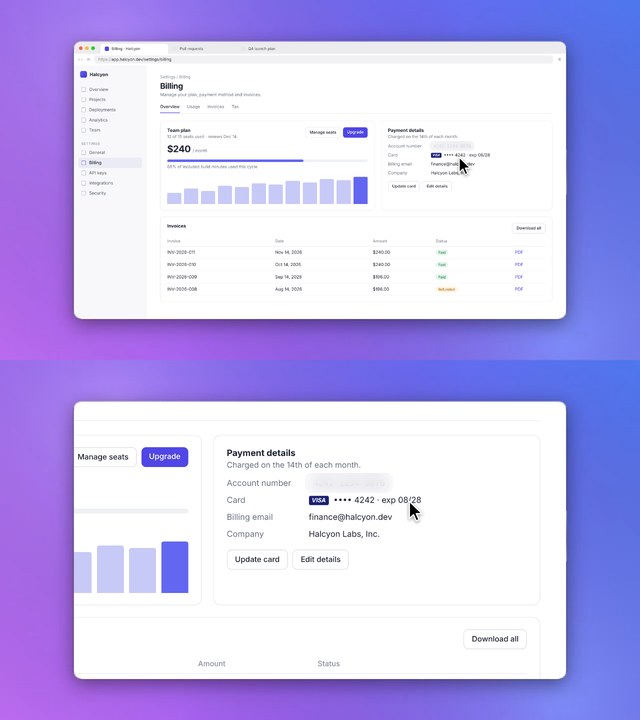
Masks are applied to the screen before zoom and styling, so a blurred account number stays blurred when an auto zoom pushes in to 3×.
Want the full walkthrough, including other ways to do it? Read how to blur sensitive information in a screen recording.
Questions
Can someone unblur a ScreenTell blur?
The blur is burned into the exported pixels, so there's no layer to remove. For anything truly secret, such as a password or a live API key, use a test account or rotate the key as well.
Does tracking work on video or animated content?
It works best on text and UI that moves as a block, such as a scrolling page. Check fast animations by scrubbing, and add a keyframe where needed.
Can I blur more than one thing?
Yes. Add as many masks as you need. Each one gets its own segment on the Mask row.